How to Merge Multiple Excel Files into One Master Sheet Without Copy-Paste Chaos
If you manage corporate operations, financial reporting pipelines, human resources tracking networks, or cross-departmental data synchronization, you are intimately familiar with the grueling monthly or quarterly collection crunch. You receive dozens of individual Excel workbooks from different regional sales representatives, departmental heads, field operations teams, or third-party vendors—all containing structurally identical headers but completely isolated rows of transactional data.
The real administrative struggle intensifies when you need to roll this fragmented data up into a single, cohesive master database for high-level business intelligence analysis, forecasting, or executive review.
The traditional desktop approach is deeply painful: manually opening the first spreadsheet, highlighting the active data grid range, copying the records to the clipboard, opening your master workbook, scrolling to the absolute bottom row, pasting the cells, closing the source document, and opening the next file to repeat the loop. This tedious layout sequence eats up hours of valuable human capital. Even worse, it introduces significant human error that can corrupt critical enterprise metrics.
1. The Hidden Liabilities of Manual Data Aggregation
Relying on manual clipboard operations to consolidate enterprise reporting data strips your team of strategic velocity and exposes your workflows to several operational risks:
Human Entry Typos and Omissions
When an employee manually opens and processes dozens of files in a row, exhaustion leads to mistakes. It is incredibly easy to accidentally skip an entire regional file, paste records over an existing data block, or copy a column header row multiple times, skewing final calculation results.
Column Misalignment and Structural Shifts
If a regional vendor or department owner has subtly modified their sheet layout—such as inserting an unexpected helper column or shifting “Revenue” from Column D to Column E—a blind manual paste operation will dump mismatched metrics into your master ledger, silently corrupting your entire corporate data pipeline.
Clipboard Truncation and Lag
Desktop operating systems are not built to hold massive multi-megabyte data grids in transient clipboard memory profiles. Large-scale manual copy-paste sequences frequently trigger application freezes, out-of-memory errors, and truncations that drop hundreds of rows without throwing warning flags.
Broken Formulas and Cross-Sheet Links
When rows are pulled raw from individual source containers, formulas utilizing relative anchoring matrices lose their contextual definitions. Excel attempts to maintain path paths to the original files, embedding external links that break when shared with other corporate managers.
Operational Standard: Manual copy-pasting is a dangerous operational bottleneck. Transitioning to automated, schema-verified consolidation workflows is mandatory to maintain total data integrity and protect corporate compliance layers.
2. Method 1: Streamline Consolidation with Splicebatch Master Sheet Combiner
If you want to completely eliminate the endless cycle of opening, copying, and closing spreadsheets without wasting time writing fragile, custom desktop macro scripts that crash your application, the Master Sheet Combiner within Splicebatch provides a seamless cloud-alternative workflow.
The engine automates file aggregation by allowing you to drop a massive batch of separate Excel or CSV documents into a single processing zone and unifying them into a clean master dataset in seconds, requiring zero programming background or software installations.
The core asset of this modern pipeline architecture is 100% data privacy and localized security. Unlike legacy web converters that process and store your private files on remote cloud servers, Splicebatch operates on advanced client-side processing technology. The compiler loads the file streams directly inside your browser’s isolated sandboxed memory loop; your internal payroll, margins, and operational logs never leave your physical machine.
Step-by-Step Automated Workspace Walkthrough:
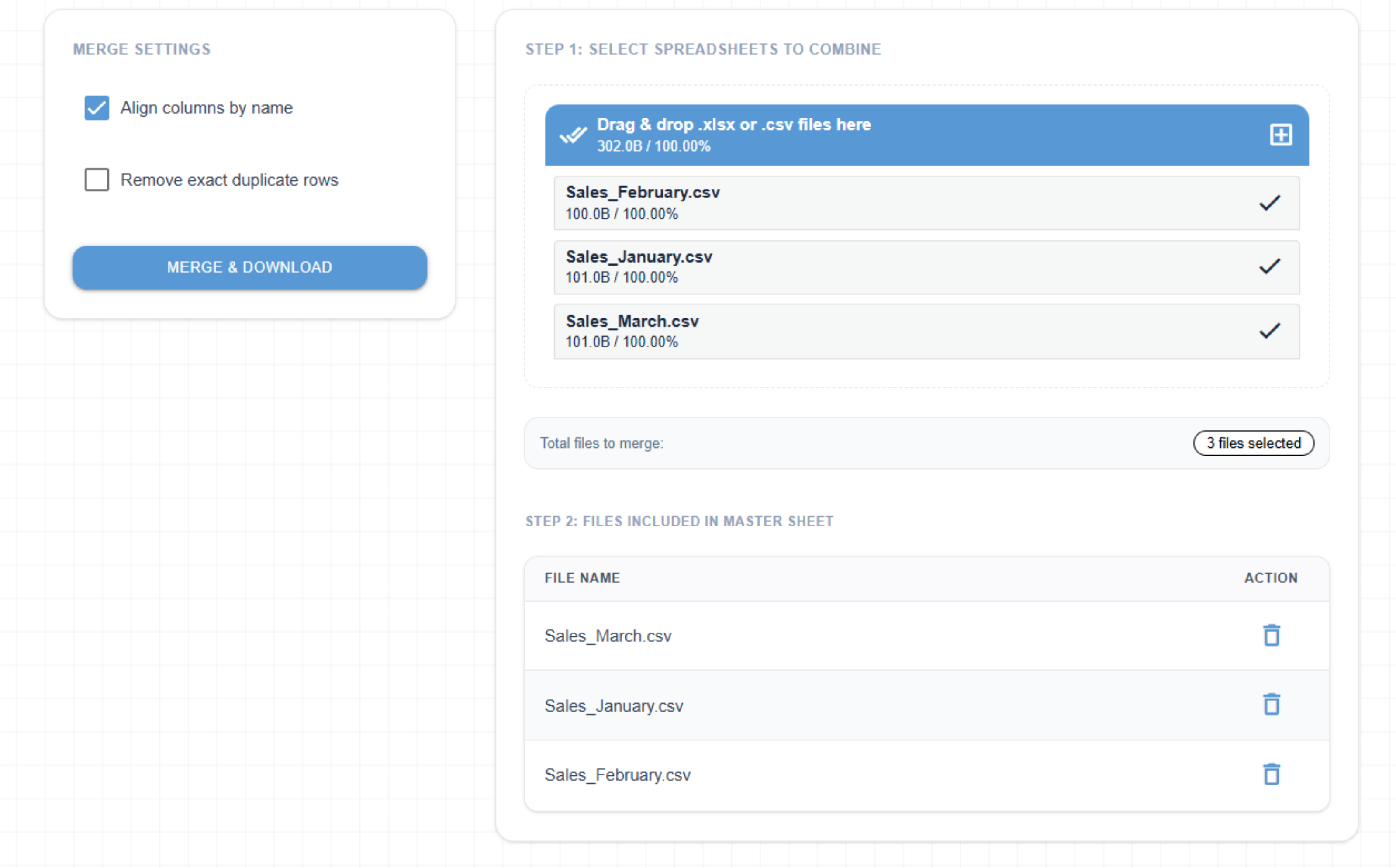
- Step 1: Mount the Source Batch Files: Open the Splicebatch interface dashboard, navigate to the consolidation module, and drag your batch of separate Excel (
.xlsx) or CSV files directly into the secure upload dropzone. - Step 2: Schema Integrity Verification: The platform’s client-side parser reads the top data arrays across every file in parallel. It automatically audits your column layouts, ensuring headers like Date, Revenue, and ID map accurately to one another, even if the files have different tab names.
- Step 3: Trigger the Stacking Sequence: Click the Combine & Generate Master Sheet button. The compilation loop stacks the matching data blocks row-by-row into a single, cohesive file layout.
- Step 4: Download Your Consolidated Master Asset: Within less than three seconds, the processing completes, providing you with a perfectly aligned, clean master workbook ready for high-level visualization or corporate distribution.
3. Method 2: The Local Excel Power Query Folder Compiler
If you are dealing with a moderate volume of local files on your machine and prefer a native desktop workaround rather than utilizing an external platform, you can leverage Excel’s built-in Power Query extraction engine.
This extract, transform, and load (ETL) utility maps an entire directory path and dynamically builds a data loading bridge to pull data from separate files simultaneously.
Step-by-Step Power Query Ingestion Guide:
- Step 1: Link the Active Folder Path: Launch a brand new blank Excel workbook. Navigate to the top Data ribbon tab, click on the Get Data dropdown icon, choose From File, and click on From Folder.
- Step 2: Locate the Target Directory: Click browse inside the wizard window, navigate to the local folder where your separate sales or financial reports are saved, and click Open.
- Step 3: Initialize the Combination Engine: Once the file preview log grid populates, do not click the standard Load button. Instead, click the dropdown arrow next to the Load option and select Combine & Transform Data.
- Step 4: Select the Data Tab Schema: In the Combine Files dialog box, click on the explicit worksheet tab name you wish to target across all files. Power Query uses the first workbook asset as an architectural sample file to map columns. Click OK.
- Step 5: Execute Column Realignment: The Power Query Editor window will launch, displaying an automated staging table. The engine automatically aligns matching headers (such as Date, Revenue, ID) and appends a
Source.Nametracking column indicating where each row originated. - Step 6: Close & Load to Workbook: Navigate to the Home tab ribbon, click the Close & Load icon, and Excel will inject a beautifully combined, dynamically refreshable table grid directly into your active worksheet tab.
4. Method 3: The Production-Grade Local VBA Macro Consolidation Solution
While Power Query is highly efficient, it can cause severe lag or freeze your application interface when looping through massive folders packed with deeply nested multi-megabyte Excel files. To build a faster, native automation route directly within your desktop environment, you can run a custom Excel VBA Macro.
The script provided below automatically prompts you to select a targeted directory, opens every workbook container sequentially in background memory, copies the source records, aligns them perfectly under your master header line, and clears the cache to protect system speed.
Installation and Workspace Setup:
- Step 1: Create a new master spreadsheet asset and hit
ALT + F11to launch the built-in VBA Developer workspace console. - Step 2: Click Insert ➔ Module from the top application application window.
- Step 3: Paste the following complete, error-guarded automation script into the code workspace editor panel:
Sub AutomatedEnterpriseWorkbookCompiler()
    ' Suspend graphic engine updates and screen flickering to maximize loop velocity
    Application.ScreenUpdating = False
    Application.DisplayAlerts = False
    Application.Calculation = xlCalculationManual

    Dim masterWs As Worksheet: Set masterWs = ActiveWorkbook.Sheets(1)
    Dim targetFolder As String, currentFile As String
    Dim sourceWb As Workbook, sourceWs As Worksheet
    Dim lastMasterRow As Long, lastSourceRow As Long
    Dim folderDialog As FileDialog

    ' Trigger a localized folder picker window for user path path mapping
    Set folderDialog = Application.FileDialog(msoFileDialogFolderPicker)
    With folderDialog
        .Title = "Select Target Folder Containing Files to Merge"
        .AllowMultiSelect = False
        If .Show = -1 Then targetFolder = .SelectedItems(1) & "\" Else Exit Sub
    End With

    ' Query the directory path for standard Microsoft Excel spreadsheet files exclusively
    currentFile = Dir(targetFolder & "*.xlsx")

    ' Build basic validation check to locate rows before starting the integration loop
    lastMasterRow = masterWs.Cells(masterWs.Rows.Count, "A").End(xlUp).Row

    Do While currentFile <> ""
        ' Ensure the routine skips the active master template file if it sits inside the folder
        If currentFile <> ActiveWorkbook.Name Then
            ' Open the targeted child workbook silently inside background cache memory
            Set sourceWb = Workbooks.Open(Filename:=targetFolder & currentFile, ReadOnly:=True)
            Set sourceWs = sourceWb.Sheets(1)

            ' Locate the exact last filled row entry inside the incoming child sheet
            lastSourceRow = sourceWs.Cells(sourceWs.Rows.Count, "A").End(xlUp).Row

            ' Replicate visible rows exclusively if the source sheet grid contains actual data records
            If lastSourceRow >= 2 Then
                lastMasterRow = masterWs.Cells(masterWs.Rows.Count, "A").End(xlUp).Row + 1
                ' Copy rows starting from index 2 to strip out duplicate header blocks
                sourceWs.Range("A2:XFD" & lastSourceRow).Copy Destination:=masterWs.Range("A" & lastMasterRow)
            End If

            ' Evict the source workbook file structure from local system memory
            sourceWb.Close SaveChanges:=False
        End If
        currentFile = Dir ' Increment file indicator pointer to target the next drive asset
    Loop

    ' Reinstate operational system parameters and recalculate cell chains
    Application.ScreenUpdating = True
    Application.DisplayAlerts = True
    Application.Calculation = xlCalculationAutomatic

    MsgBox "Consolidation sequence successful! All rows stacked cleanly into your master sheet matrix.", vbInformation, "Process Completed"
End Sub- Step 4: Close the developer module, return to your worksheet grid, press
ALT + F8, selectAutomatedEnterpriseWorkbookCompiler, and hit Run.
5. Data Mapping Blueprint: Multi-File Stacking Ingestion Profile
To fully visualize how disparate reporting files are extracted and stacked into a unified repository grid without duplication, review the operational ingestion pattern outlined below:
Incoming Workspace Files (Stored Inside Selected Local Directory Folder):
---------------------------------------------------------------------
📁 File_Alpha.xlsx (Operations Dept)
   -> [Row 1] ID, Staff_Name, Division, Cost
   -> [Row 2] 901, John Doe, Operations, \$4,500

📁 File_Beta.xlsx (Marketing Dept)
   -> [Row 1] ID, Staff_Name, Division, Cost
   -> [Row 2] 902, Jane Roe, Marketing, \$6,200

📁 File_Gamma.xlsx (Engineering Dept)
   -> [Row 1] ID, Staff_Name, Division, Cost
   -> [Row 2] 903, Alex Smith, Engineering, \$7,100

=================== [AUTOMATED PIPELINE COMPILING LOOP] ===================
Processing core opens file streams, preserves row 1 headers once, and strips trailing spaces.

Consolidated Master Output File Layout (Single Consolidated Asset):
---------------------------------------------------------------------
[Row 1] ID  | Staff_Name  | Division     | Cost
[Row 2] 901 | John Doe    | Operations   | \$4,500  <- (From File_Alpha)
[Row 3] 902 | Jane Roe    | Marketing    | \$6,200  <- (From File_Beta)
[Row 4] 903 | Alex Smith  | Engineering  | \$7,100  <- (From File_Gamma)
6. Power Query vs. Desktop Macros vs. Automated Platforms
While building local file pathways works for occasional tasks, it presents structural bottlenecks when scaled across a multi-departmental business team. Review this functional breakdown of operational parameters:
| Operational Metric | Manual Power Query Extraction | Custom VBA Macro Scripting | The Splicebatch Platform Engine |
|---|---|---|---|
| User Accessibility | Limited to technical team members comfortable with data modeling. | Requires familiarity with macro-enabled files and developer settings. | Fully accessible to non-technical users via an intuitive web upload. |
| Speed & Scaling | Struggles or slows down when processing dozens of multi-megabyte files. | Rapid loop processing but can face lag with heavy formatting data grids. | Streams and compiles dozens of deep file structures in under 3 seconds. |
| Risk Management | Moderate. Mismatched column names or structural shifts break the query. | High. Runtime compilation errors can freeze desktop interfaces or leak cache. | High. Intelligently flags structural discrepancies before compiling rows. |
| Output Integrity | Automatically refreshes on click, but files must remain static in the path. | Overwrites existing data grids without saving history unless hardcoded. | Generates clean, secure, production-ready enterprise .xlsx or .csv sheets. |
7. Frequently Asked Questions
Can the tool combine files if the sheets inside have different names?
Yes. Splicebatch evaluates the actual structural data matrices and column layouts of your uploads rather than relying strictly on text tab labels. As long as your core data headers align smoothly (e.g., “First Name” matches “First Name” in casing and spelling), the client-side compiler will successfully bridge the records into a unified file container, ignoring the fact that one sheet was named “Sheet1” and another was named “Data_Export”.
Will the compilation process mess up my underlying cell formatting or dates?
No. The platform’s underlying parsing engine reads the structural cell metadata blocks to pull raw records while entirely preserving cell styling definitions. Your date strings, currency settings, localized decimal marks, background coloring grids, and numerical formatting remain completely intact and uniform throughout the newly created master document container.
Is our corporate data completely protected during the merging process?
Data privacy is built straight into the core of our platform architecture. Splicebatch moves your file batches through fully isolated, end-to-end encrypted transfer layers executing locally. Because we use client-side data streaming technology, your private financial reports, employee logs, and operational metrics are never saved on our remote cloud storage drives or processed by external third parties. Everything handles locally within your browser sandbox profile.
Why does my Excel VBA macro trigger a “Run-time error ‘9’ - Subscript out of range”?
This execution error typically indicates that the VBA script is attempting to select a specific worksheet tab index name (e.g., Sheets("Sheet1")) that does not exist in one of the incoming source files. The macro code provided in Method 3 bypasses this issue entirely by utilizing index-based targeting (Sheets(1)), which forces Excel to open the very first tab of every file regardless of its literal text string name.
What happens if one of the source files contains extra columns not found in the other workbooks?
If you merge files via the Splicebatch Master Sheet Combiner, the engine automatically runs a structural audit on your schemas. If it discovers an extra column in one of the spreadsheets (such as a custom notes column), it will intelligently append it to the end of the master sheet layout, filling the cells for the other files with blank rows to maintain complete structural alignment.