Introduction: The Evolution of Spreadsheet Consolidation
Data aggregation in large corporate environments often requires operations teams to merge individual regional reports back into a single workspace. Historically, achieving this consolidation meant relying on complex scripting, manual copying, or tedious data sorting routines.
When analyzing modern spreadsheet functions, learning how to combine multiple excel sheets into one using formula patterns can drastically speed up your reporting flow. Modern calculation engines provide dynamic array functions designed to stack datasets natively.
However, relying entirely on live calculation streams introduces significant technical limits. If your underlying workbooks contain mismatched column orders, missing rows, or massive arrays, your formulas can slow down system processing or return severe formatting glitches. This technical guide covers the best native syntax options, their operational vulnerabilities, and how to automate the consolidation workflow safely.
Method 1: Stacking Data Vertically with the =VSTACK Formula
The most effective modern way to merge separate sheets without running manual macro loops is using the native =VSTACK (Vertical Stack) function. This formula reads arrays across multiple sheets and appends them into a single continuous dataset.
The Formula Syntax
To combine rows from three identical sheets (e.g., Sheet1, Sheet2, and Sheet3), select a cell in your master summary sheet and enter:
=VSTACK(Sheet1!A2:G100, Sheet2!A2:G100, Sheet3!A2:G100)The Dynamic 3D Reference Workaround
If you have a large number of sheets named consecutively, you can utilize a 3D reference to stack them instantly:
=VSTACK('Sheet1:Sheet3'!A2:G100)Structural Weaknesses of Dynamic Formula Consolidation
While built-in array functions offer a fast alternative to rigid desktop macros, they are highly sensitive to corporate data changes and reveal severe structural limitations in real-world pipelines:
- The Mismatched Column Trap: The
=VSTACKfunction appends rows blindly based on cell positions. If an employee alters the column sequence in Sheet2 (e.g., swapping ‘Email’ with ‘Phone Number’), Excel will stack mismatched data types together without warning, corrupting your master data. - The Duplicate Row Accumulation: Stacking multiple sheets often brings redundant data into the master file. To filter them out natively, you must nest your formula inside a heavy logical block like
=UNIQUE(VSTACK(...)). This exponential calculation loop heavily drains local CPU and RAM resources. - The CSV Format Isolation: Formulas like
=VSTACKcan only reference data structures already loaded into the active Excel memory grid. They cannot parse external, raw database dumps like text-based CSV files directly without a manual, multi-step import wizard configuration.
To bypass these live layout risks and formatting errors (such as the frustrating #SPILL! bottleneck), data operations teams are migrating their ingestion processes away from live formulas toward dedicated client-side browser automation.
Manual Formulas vs. The Splicebatch CSV / Excel Merge
When corporate data requires immediate processing, relying on live sheet calculations creates vulnerable workspaces. Moving your file integration pipeline into an external runtime sandboxed engine guarantees structured alignment.
| Performance Metric | Native Excel Array Formulas | The Splicebatch Combiner |
|---|---|---|
| Column Alignment | Rigid positional stacking. High risk of data mismatch if order changes. | Smart Automation. Automatically aligns columns by name regardless of sequence. |
| Data Cleaning | Requires nested =UNIQUE() formulas that trigger application lag. | Immediate Filtering. One-click checkbox to remove exact duplicate rows in seconds. |
| System Calculation Load | High. Constant recalculation loops freeze computer memory. | Zero Latency. Files parse instantly inside secure browser memory threads. |
| File Formats Supported | Limited strictly to internal, pre-opened workbook objects. | Cross-Compatible. Merges multiple CSV and Excel files simultaneously. |
Optimize Your Enterprise Data Architecture
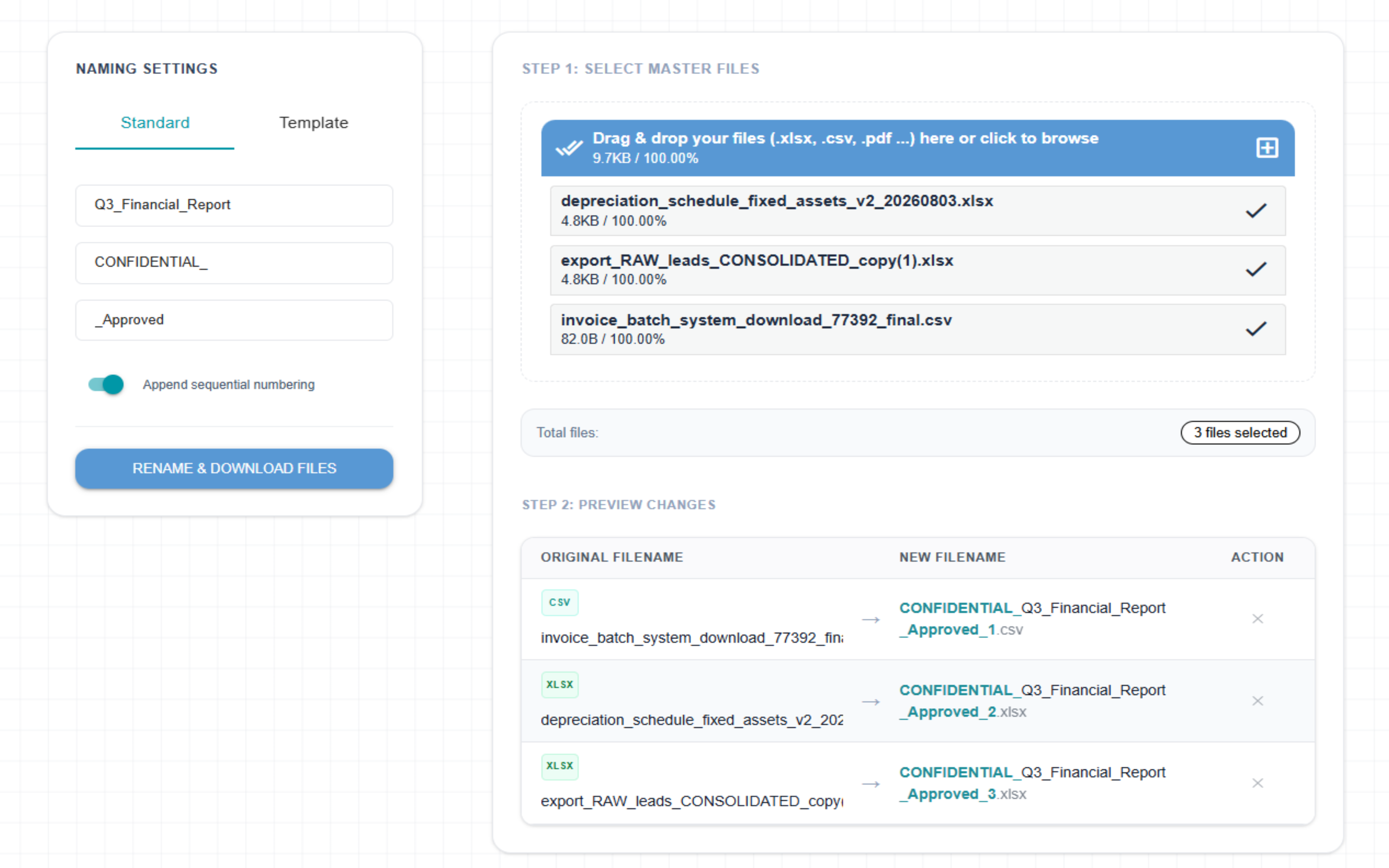
Standardizing your source files before running consolidation tools saves hours of formatting work. If you work with raw platform logs, check out our process for how to clean, rename, and organize automated system download batches to clear out filename noise.
For teams managing decentralized data assets that require advanced segmenting, review our guide on how to split a master excel sheet. If you are attempting to move data packages without losing complex formatting, follow our breakdown on how to combine separate excel sheets without corrupting your formulas.
Automate Your Master File Pipelines Instantly
Relying on delicate sheet formulas, nested logic, or repetitive manual merges creates unnecessary business bottlenecks. Eliminate calculation lag and structural column misalignment by managing your spreadsheet ingestions externally.
The Splicebatch CSV / Excel Merge module removes local application boundaries, allowing you to automatically align columns, filter duplicates, and combine mixed formats using highly secure, client-side browser runtime memory.
👉 Launch Splicebatch CSV / Excel Merge Now to merge your workbooks seamlessly.