How to Split Excel Tabs Into Separate Files Without Macros
How to Split Excel Tabs Into Separate Files Without Macros
It is a repetitive chore that derails accounting closes, regional reporting cycles, and inventory management. You receive a massive master workbook containing dozens of individual department tabs, regional ledgers, or monthly client statements. Your task is to isolate every single worksheet and save it as its own independent file to distribute to individual stakeholders.
Doing this manually—right-clicking a tab, selecting “Move or Copy,” creating a new workbook, and saving it—is a minor nuisance for two tabs. For twenty tabs, it becomes a major operational bottleneck that drains hours of productive time.
Worse, relying on legacy desktop applications to slice dense spreadsheets frequently triggers:
- Formula Corruption: External links breaking or cross-sheet references displaying #REF! errors.
- Formatting Degradation: Custom column widths, corporate fonts, and conditional formatting rules getting lost during local transfers.
- System Freezes: Desktop software crashing mid-save when handling multi-megabyte files packed with heavy calculation matrices.
The operational risk: Sending a master file with unhidden or poorly restricted tabs to the wrong recipient leaks sensitive corporate metrics, compromises client privacy, and breaches basic data compliance pipelines.
Method 1: Instant Sheet Extraction with Splicebatch
If you need a reliable production fix that isolates individual workbook tabs instantly without writing custom scripts, installing heavy software, or exposing sensitive financial metrics, a private browser-based runtime is the optimal strategy.
We engineered the Splicebatch Workbook Sheet Splitter to execute lightning-fast tab extractions directly inside your browser memory:
- Drop your multi-tab Excel file into our private browser container workspace.
- Verify your detected worksheets. Our layout matrix instantly maps out every individual tab name within your file structure.
- Download the compressed archive. Click split, and Splicebatch separates each tab locally, packing individual documents into a single clean ZIP archive in less than three seconds.
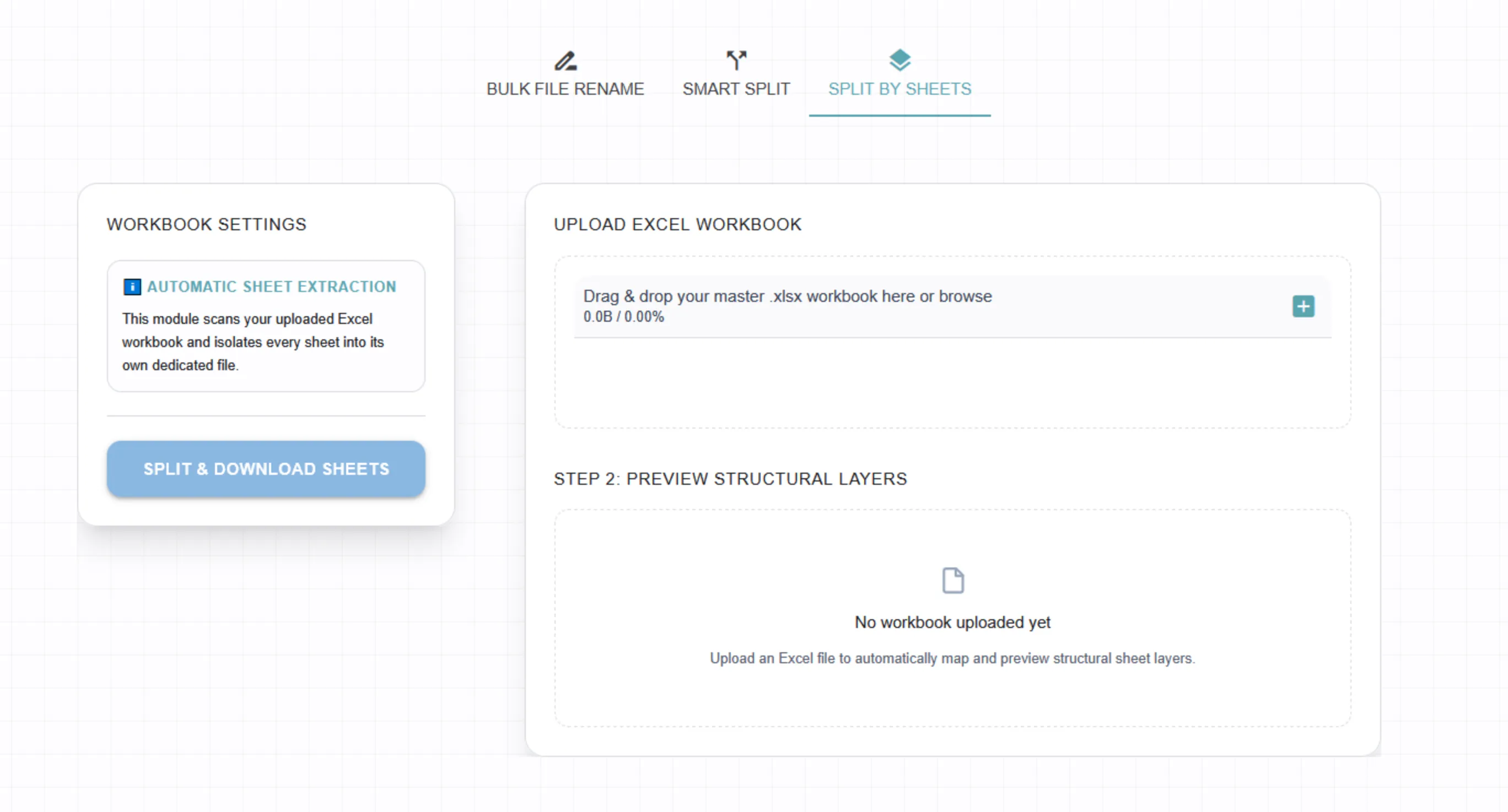
Performance Check:* The Free tier safely processes standard files up to 5MB, perfectly handling standard monthly ledgers. For enterprise-grade workbooks exceeding 5MB or containing massive data grids, upgrading to our Pro Plan removes all file size caps instantly.
Advanced Data Architecture Note: When pulling tabs dynamically, improper file paths or prohibited symbols often disrupt saving pipelines. If your sheet names contain punctuation that breaks operating system file chains, follow our technical workflow on how to remove invalid characters from excel file names automatically. If you are looking to reverse this process and bundle single sheets back together, refer to our tutorial on how to combine separate excel sheets without corrupting your formulas to secure your layout structures.
Method 2: The Local Windows Visual Basic (VBA) Macro Approach
If you are operating in a standalone local environment and prefer a native system utility without using a web browser, you can extract tabs using a local Visual Basic for Applications (VBA) macro script inside Microsoft Excel.
Press ALT + F11 to open the VBA editor, click Insert > Module, and execute this automated workbook saving loop:
Sub SplitWorkbookTabs()
    Dim ws As Worksheet
    Dim DisplayFolder As String
    Dim TargetFilePath As String

    ' Set the output directory path vector (ensure the trailing slash is included)
    DisplayFolder = Application.DefaultFilePath & "\"

    ' Turn off screen alerts to optimize processing speed and prevent lockups
    Application.ScreenUpdating = False
    Application.DisplayAlerts = False

    For Each ws In ThisWorkbook.Worksheets
        ' Isolate and copy the individual sheet to establish a new workbook
        ws.Copy

        ' Build a safe file path using the sheet name
        TargetFilePath = DisplayFolder & ws.Name & ".xlsx"

        ' Save the fresh standalone document using native Excel formatting
        ActiveWorkbook.SaveAs Filename:=TargetFilePath, FileFormat:=xlOpenXMLWorkbook
        ActiveWorkbook.Close SaveChanges:=False
    Next ws

    ' Restore system alerts back to operational default settings
    Application.ScreenUpdating = True
    Application.DisplayAlerts = True

    MsgBox "Workbook sheet extraction complete. Files saved to: " & DisplayFolder, vbInformation
End Sub
Use macro processing loops with extreme caution on production data. Macro-enabled workbooks (.xlsm) can trigger internal corporate security flags.
Browser Isolation vs. Desktop VBA Macro Automation
While local macro loops slice through standard workbooks, deploying raw code across modern administrative and business operations introduces severe friction:
| Operational Metric | Desktop VBA Macro Automation | The Splicebatch Engine |
|---|---|---|
| User Boundary | High friction. Requires enabling macro permissions, manual script insertion, and technical debugging when errors occur. | Zero friction. Readily accessible via an intuitive, visual web UI. No technical or programming skills required. |
| System Security | Vulnerable. Macro files (.xlsm) frequently harbor malware risks, causing enterprise firewalls to block execution. | Secure isolation. 100% private client-side processing ensures your rows never leave your computer’s local memory. |
| Cross-Platform | Restricted. Legacy VBA commands fail or require completely different setups on macOS or web-based office apps. | Universal. Works flawlessly on Windows, Mac, Linux, or tablet browsers with zero environment setup. |
Frequently Asked Questions
Will using Splicebatch corrupt my cell styling or data formulas?
No. Splicebatch respects your workbook’s core structure. It safely extracts individual sheets and preserves their native data parameters, cell values, and color branding exactly as they were built.
Is it safe to upload proprietary corporate financial files to this tool?
Yes, completely. Splicebatch operates using advanced client-side processing scripts. Your file data is parsed directly in your device’s active RAM browser window and is never sent, stored, or processed on external web servers.
Can I run this sheet splitter tool on an Apple Mac machine?
Yes, absolutely. Because Splicebatch runs directly inside standard modern web browsers, you do not need to configure complex settings or deal with macro incompatibilities across different operating systems.