How to Reorder and Organize Excel Sheets Without Opening Excel
The Layout Gridlock: Why Sheet Management Traps Corporate Operations
If you handle massive regional sales rolls, multi-department inventory ledgers, or monthly financial rollups, you already know the frustration of handling multi-tab workbooks. After compiling data from various nodes, you are frequently left with an unordered chaos of sheets.
Rearranging this structure inside traditional desktop Excel is a notoriously fragile process. Click-and-dragging tiny sheet tabs across a laggy user interface often results in accidental drops, hidden tab selections, or misplaced data sequences. If your sheets contain internal tracking calculations, a single misplacement can disrupt your analysis pipeline. To make matters worse, building a master directory index requires manually copying sheet links one by one. This manual process slows down corporate workflows, risks broken navigation, and wastes valuable hours that should be spent on data analysis.
The operational reality: Struggling with manual sheet ordering and broken internal workbook layouts adds unnecessary friction to file distribution. Keeping workbook architectures clean is crucial for presenting clear data to stakeholders.
The Modern Browser Fix: The Splicebatch Sandbox Engine
If your Microsoft desktop app is frozen, laggy, or you are running an automated server pipeline, opening heavy files just to shuffle sheets is an efficiency killer. You can completely skip desktop application freezes by using the secure browser interface at Splicebatch.
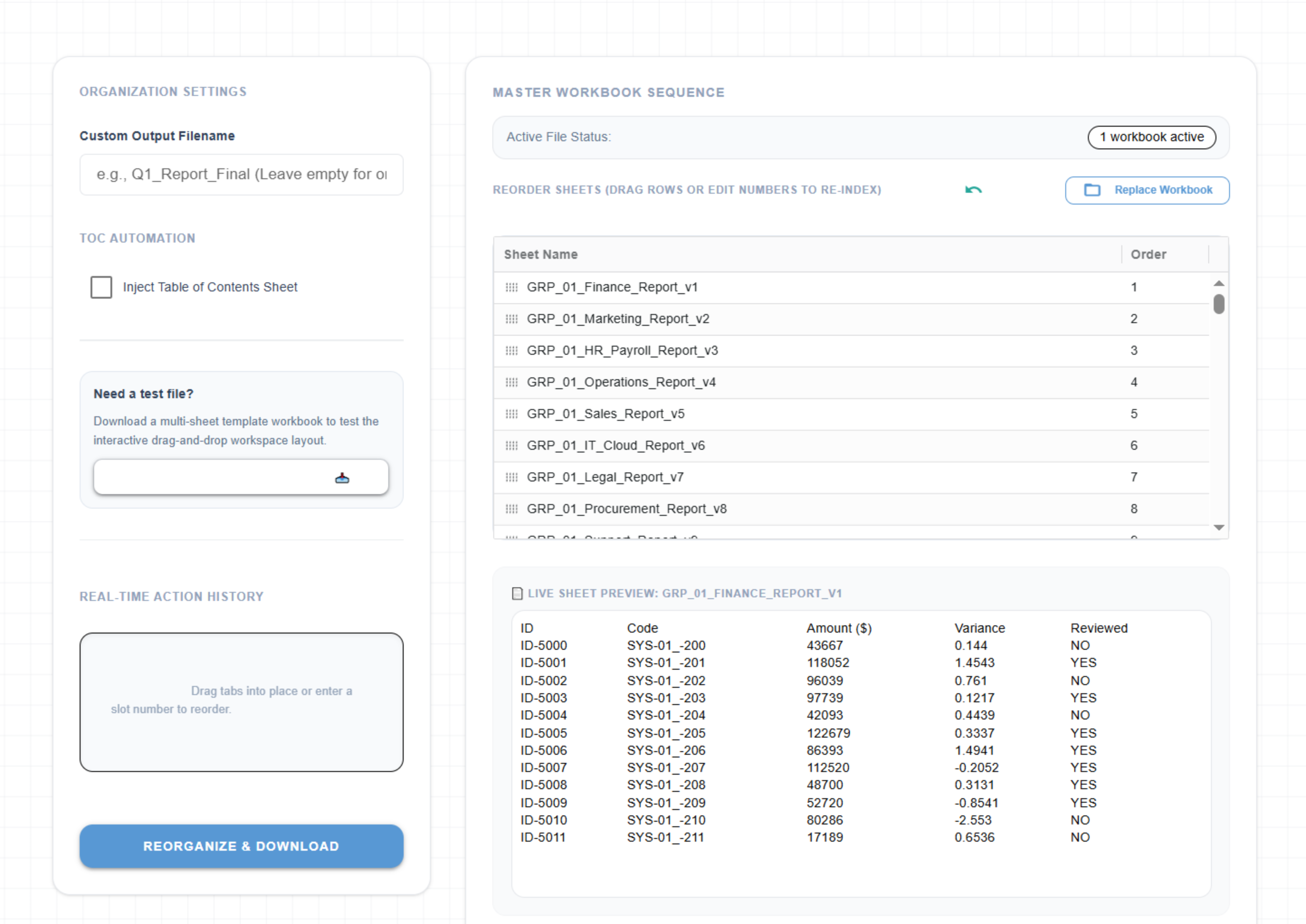
The platform’s Workbook Organizer removes the friction of native software entirely, allowing you to visually structure your delivery payloads before they ever hit your hard drive:
- Visual Drag-and-Drop Navigation: Shuffle, isolate, or alphabetize your internal sheets visually on a clean browser canvas without laggard desktop scrolling.
- Safety-Net Preview Undo: Validate layout transformations with complete rollback safety states before committing changes to storage layers.
- Automated Table of Contents: Automatically read internal sheet metadata to inject a hyperlinked, dynamic index directory sheet straight into the final file payload.
- Pre-Download Rename Operations: Apply quick cleaning rules or batch names to individual worksheet tabs simultaneously right before compiling.
Option 1: The Native Desktop Context Menu Method
If you are stuck on a local machine and need to reorganize a workbook using standard desktop options, you can use Excel’s precise coordinate dialogue window instead of relying on mouse-dragging. This minimizes layout errors on multi-tab reports.
Right-click the target tab at the bottom of your workspace and follow these structural steps:
- Select Move or Copy from the pop-up context menu to open the positioning parameters box.
- In the Before sheet window list, scroll down and select the exact sheet placement destination.
- Keep the “Create a copy” checkbox blank to execute a direct layout move instead of duplicating the data.
- Click OK to confirm the move, then manually repeat this process for every single tab that needs sorting.
The Pros and Cons:
- The Good: Safe and reliable for basic file adjustments without risking layout slips.
- The Bad: Unbelievably tedious for large files. If your system export generates dozens of regional sheets, sorting them one by one takes massive amounts of manual effort.
Option 2: The Native Navigation List Approach
When managing an ultra-wide workbook with dozens of hidden or overflowing sheets, finding individual tabs to sort them becomes near impossible on small monitor screens. You can call up an isolated text list of your sheets to speed up jumping between positions.
Hover over the small navigation arrows in the bottom-left corner of your desktop screen and apply these navigation steps:
- Right-click directly on the left or right navigation arrows to trigger the hidden “Activate Sheet” overlay menu.
- Scroll through the clean vertical list of all active worksheets to instantly highlight your target tab.
- Click OK to hop directly to that sheet without needing to scroll past row after row of horizontal tabs.
The Pros and Cons:
- The Good: Helps you find lost or overflowing sheets quickly without dragging your horizontal scroll bar back and forth.
- The Bad: This panel is purely for viewing and jumping. It does not provide visual layouts and does not allow you to reorder, batch-rename, or clean your sheet positions from within the list.
Operational Performance: Manual Desktop Shuffling vs. Browser Actions
Managing workbook layouts directly impacts file delivery times and data clarity across your business lines:
| Operational Metric | Desktop Manual Shuffling | Desktop Navigation Lists | The Splicebatch Browser Engine |
|---|---|---|---|
| Execution Speed | Extremely low. Requires tedious clicking across massive file sheets. | Moderate for navigating, but slow since you cannot execute multi-tab moves. | Instant. Executes structural moves visually through a web interface. |
| User Interface Friction | High. Tiny tabs are hard to drag and easily slip out of order. | High. Text-only menu that lacks visual sheet previews or layouts. | Zero friction. Accessible to any assistant via visual drag-and-drop mechanics. |
| Safety Measures | Low. Lacks a global undo history state; accidental deletions are permanent. | N/A. Does not support operational or naming edits directly. | High. Full preview validation with instant rollback capabilities. |
Advanced Workflow Connections: Keeping Your Workspace Clean
Correctly sequencing your worksheet tabs is only the first step in prepping your files for executive delivery. A truly professional data package requires a clean table of contents index, unified sheet naming schemas, and a final structural review before it reaches your clients.
Advanced Workflow Tip: If you need to clean up messy system file strings before organizing your sheet tabs, pair this layout process with our guide on how to combine separate excel sheets without corrupting your formulas to secure your source arrays. If your files originate from automated system pipelines, read our breakdown on how to clean, rename, and organize automated system download batches to lock down your workflow infrastructure.
Frequently Asked Questions
Why does dragging spreadsheet tabs on desktop Excel feel so laggy?
Desktop Excel processes cell calculations, background links, and graphic layouts in real-time as you drag elements. If your file contains massive data formulas, the desktop application freezes up because it attempts to recalculate your rows during the movement.
Will changing my sheet order break my existing formula arrays?
No. Excel dynamically updates standard 3D cell formulas (such as =SUM(Sheet1:Sheet3!A1)) when sheets are shifted. However, if your formulas rely on hardcoded string references executed through the INDIRECT function, breaking the specific tab sequence will trigger a cascade of #REF! errors.
Can I insert a Table of Contents that updates automatically if sheets are renamed?
Native desktop Excel does not offer a dynamic, out-of-the-box table of contents builder without writing complex custom VBA indexing scripts. Utilizing a dedicated processor like Splicebatch automates this task by programmatically reading sheet metadata and mapping hyperlinked indexing tables dynamically before final compilation.